
Your first deployment
Create a test project and run a harmless Bash script from the web interface.
On this page
This example prints a message without changing a target system. You need a running server with container execution enabled and a working Docker or Podman runtime. Use an administrator account for this walkthrough.
If someone manages the server for you, ask them to prepare the environment and permissions. Maintainers can author project content. Deployers can run existing releases.
1. Create an environment
- Open Environments.
- Create an environment named
test. - Save the environment.
An environment names a destination and holds deployment settings. It does not create a server or open an SSH connection. This example uses the DurpDeploy server’s container runtime.
2. Create a project
- Open Projects.
- Create a project named
Hello DurpDeploy. - Leave the lifecycle unassigned for this example.
- Save the project.
A lifecycle controls which environments a release can reach and in which order. A project without a lifecycle can use any available environment.
3. Add a script step
Open the project’s Steps page and select Add Step. Use these values:
- Name:
Say hello - Interpreter:
Bash - Run step on:
Server container - Container image:
bash:5.2
Paste this into Script Body:
printf 'Hello from DurpDeploy!\n'Select Save. The image must contain Bash and be reachable by the server’s runtime. Your administrator can provide an approved registry mirror or image digest instead.
Server containers do not have host mounts and use no network by default. This script needs neither. Use remote agents when a script must operate on another machine.
4. Create a release
- Open the project’s Releases page.
- Enter
0.1.0in Version. - Select Create Release.
The release saves the current steps and variables. Editing the project later does not update this release automatically.
5. Deploy and read the logs
- Select Deploy for your project or release.
- Select release
0.1.0. - Select environment
test. - Submit the deployment.
- Open its details and follow the live logs.
Look for Hello from DurpDeploy! and a successful deployment result.
The deployment page retains the steps, logs, and outcome for later review.
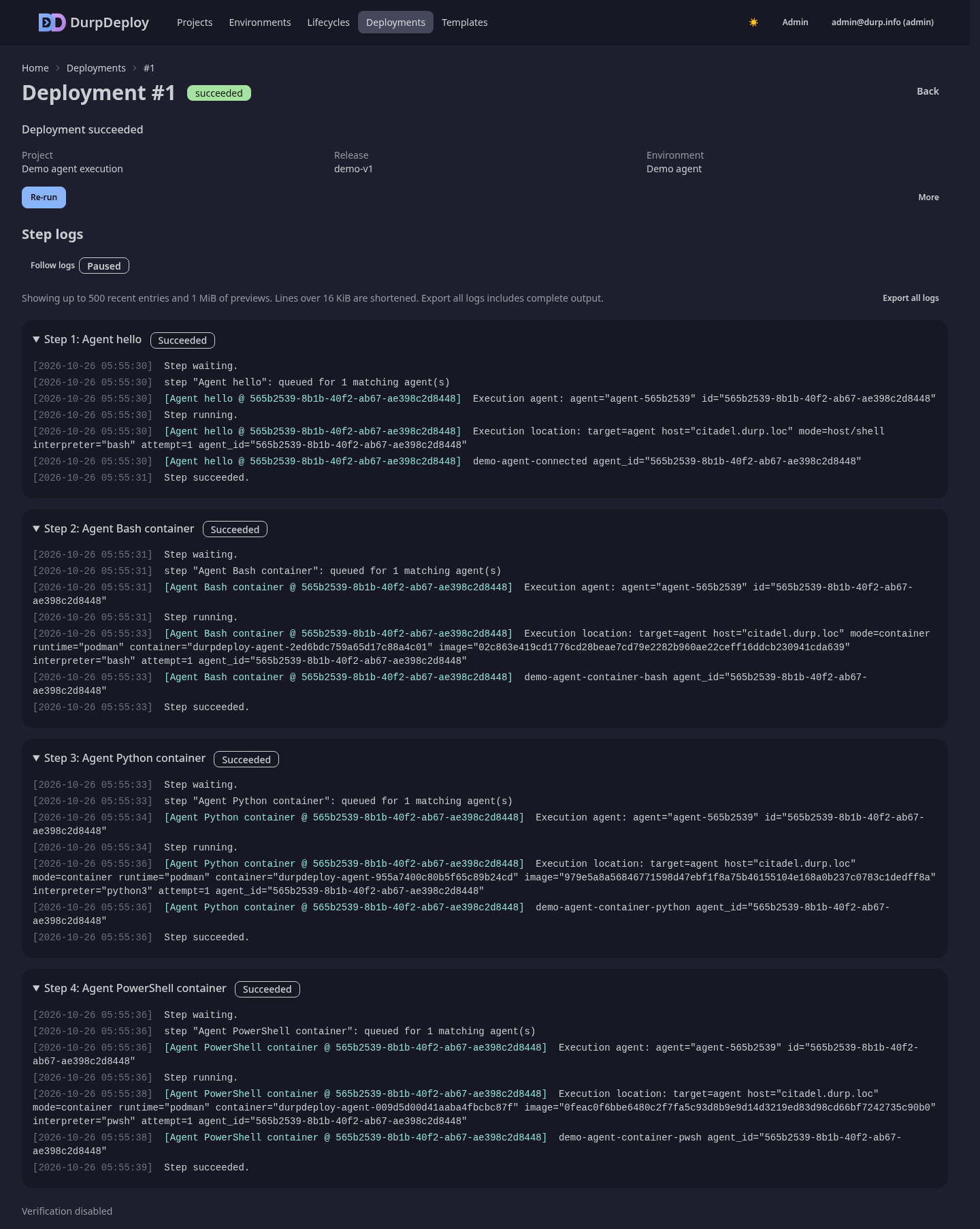
This screenshot uses demo data. Your project name, release, and log messages will differ.
Try your own script
Add variables before creating the next release.
Choose an image with the tools your script needs.
Python steps need python3, and PowerShell steps need pwsh.
Use remote agents for scripts that need a target machine’s local resources. Read Releases and deployments before enabling approvals, retries, or rollback.
If the test fails, use the first error in the log to start troubleshooting.